Market Minds walkthrough

See the workflow screen by screen.

This guide uses Market Minds interface examples to explain what each screen does and how a self-directed user can move from portfolio setup to recording activity, importing broker history and reviewing analytics. Values shown in screenshots are examples, not market recommendations.

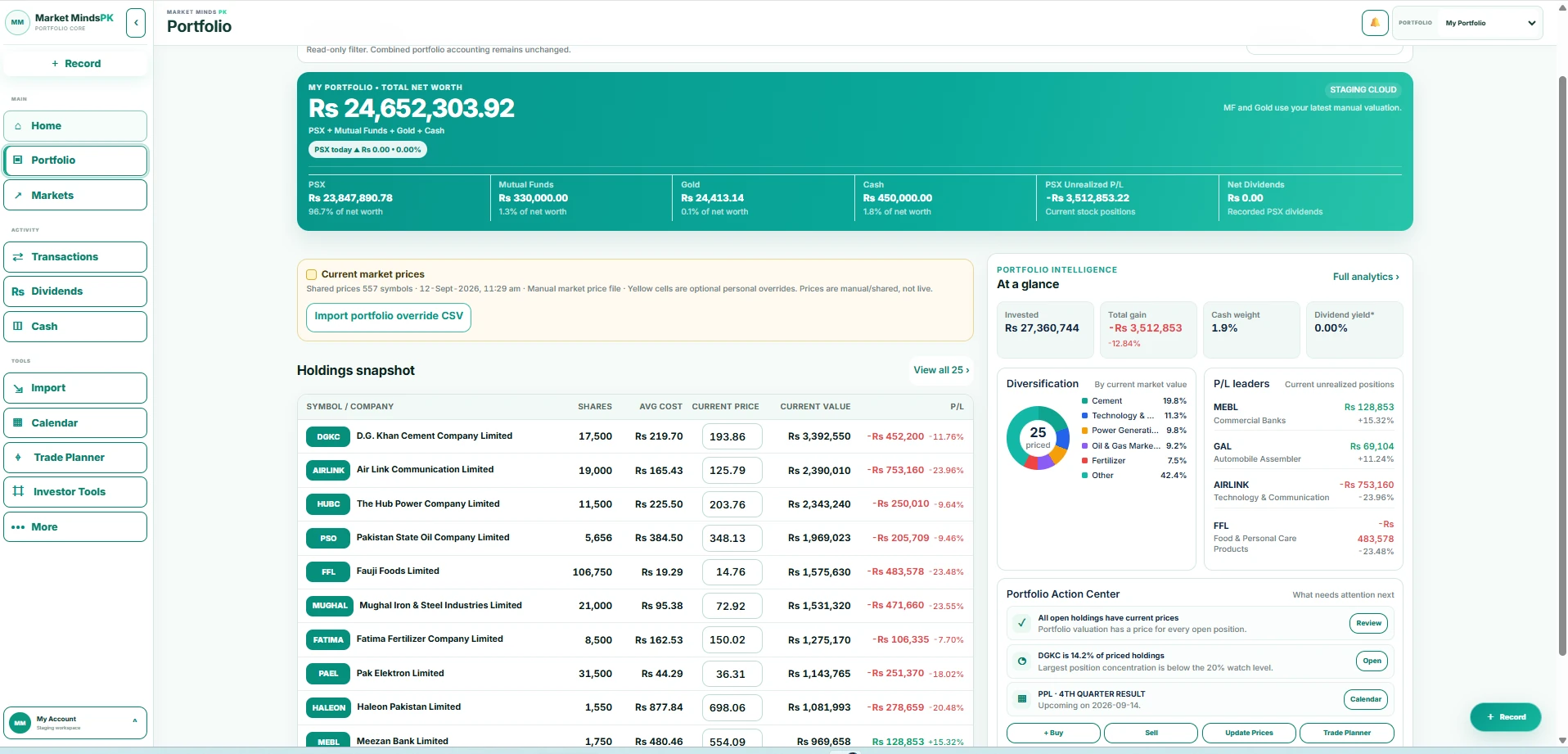
Your portfolio at a glance screen in Market MindsOpen full size ↗
1

Your portfolio at a glance

The Home workspace brings holdings, cash, total worth and portfolio intelligence together. It is designed to answer a simple question first: what do I own, what is it worth using my latest recorded valuation, and where is the biggest concentration or gain/loss?

How to use it

  1. Open your portfolio after sign-in.
  2. Check the Total Net Worth card and each asset class.
  3. Review Holdings for quantity, average cost, current price and unrealized P/L.
  4. Use Portfolio Intelligence for allocation, leaders and items needing attention.
Important: Price updates affect current valuation; they do not silently rewrite historical transactions.
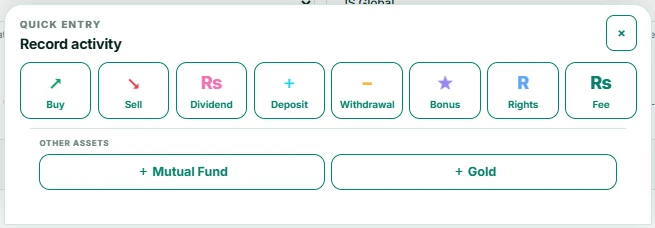
Quick Entry: choose what you want to record screen in Market MindsOpen full size ↗
2

Quick Entry: choose what you want to record

The + Record menu is the fast entry point for common portfolio activity. Each choice opens a focused form so the user does not need to work through a large accounting screen.

How to use it

  1. Click + Record.
  2. Choose Buy, Sell, Dividend, Deposit, Withdrawal, Bonus, Rights or Fee.
  3. For non-share assets choose Mutual Fund or Gold.
  4. Complete the focused form and review the result before saving.
Important: Each activity is recorded as its own ledger event so the audit trail stays understandable.
Record a Buy screen in Market MindsOpen full size ↗
3

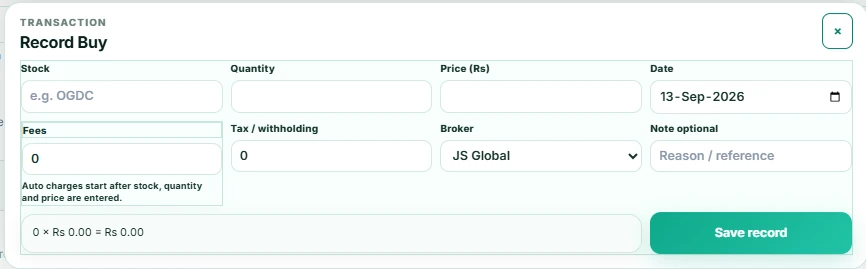
Record a Buy

Use Record Buy when you are entering a purchase manually. The form captures the security, quantity, trade price, date, broker and any explicit fee/tax values.

How to use it

  1. Select or type the stock symbol.
  2. Enter quantity and buy price.
  3. Choose the trade date and broker account.
  4. Add fees/tax only if applicable or allow the configured charge logic to calculate when supported.
  5. Review the amount and save the record.
Important: The new purchase contributes to position quantity and cost basis after it is saved.
Record a Sell screen in Market MindsOpen full size ↗
4

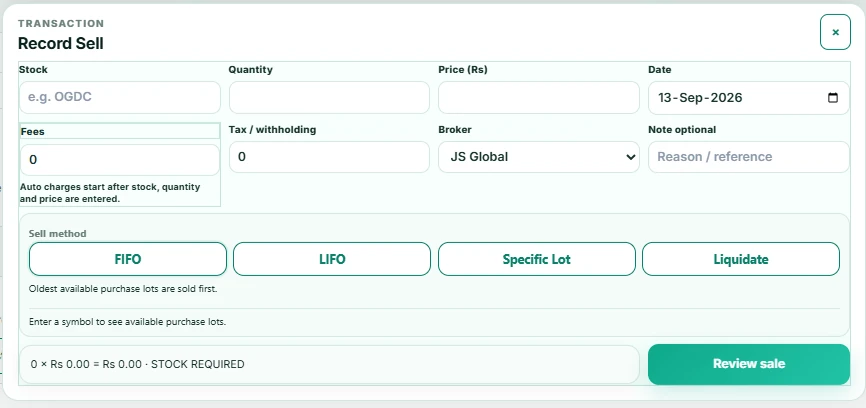
Record a Sell

A sale needs more than a sell price. Market Minds also asks how the shares being sold should be matched to purchase lots so cost basis stays explainable.

How to use it

  1. Enter the stock, quantity, sell price and date.
  2. Choose the broker account.
  3. Select FIFO, LIFO, Specific Lot or Liquidate.
  4. Review available lots and the sale quantity.
  5. Continue to the review step before committing the sale.
Important: Sell-lot selection is part of accounting; it is not a buy/sell recommendation.
Sell a Specific Lot screen in Market MindsOpen full size ↗
5

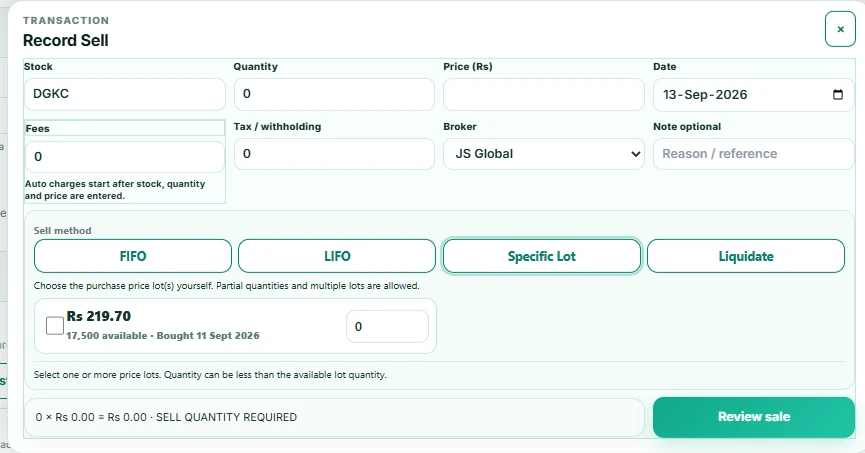
Sell a Specific Lot

Specific Lot lets the user choose the exact recorded purchase lot that should be reduced. This is useful when multiple purchases exist at different prices or dates.

How to use it

  1. Enter the stock symbol to load available lots.
  2. Choose Specific Lot.
  3. Tick one or more purchase lots.
  4. Enter a partial quantity when you do not want to use the full lot.
  5. Review the resulting sell quantity before continuing.
Important: The selected lot allocation is stored with the sale so the cost basis can be traced later.
Record Cash Deposit screen in Market MindsOpen full size ↗
6

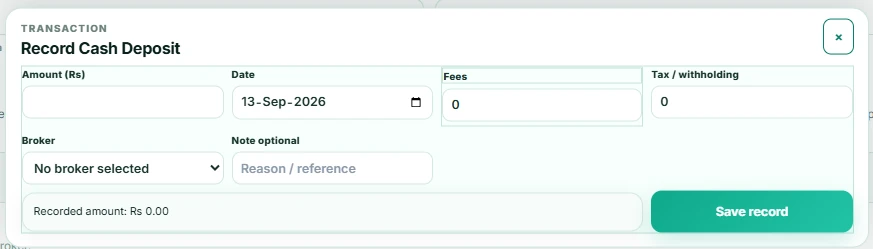
Record Cash Deposit

Cash is tracked separately from security positions. Deposits and withdrawals should represent money moving into or out of the portfolio workspace, not market gains or losses.

How to use it

  1. Open + Record and choose Deposit.
  2. Enter the cash amount and date.
  3. Select a broker only when the movement belongs to a specific broker account.
  4. Add an optional note/reference.
  5. Save the record and confirm the Cash page balance.
Important: Keeping cash movements separate prevents deposits from being mistaken for investment return.
Record Bonus Shares screen in Market MindsOpen full size ↗
7

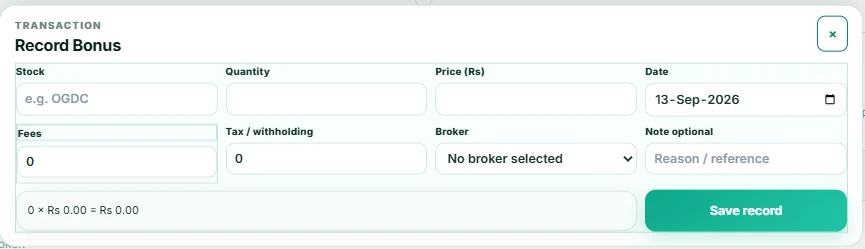
Record Bonus Shares

Bonus shares increase quantity without being treated like a normal cash purchase. The dedicated entry keeps the corporate action visible in the ledger.

How to use it

  1. Choose Bonus from Quick Entry.
  2. Select the company and enter the bonus quantity.
  3. Use the effective date of the corporate action.
  4. Choose the relevant broker account if needed.
  5. Save and confirm the holding quantity changed as expected.
Important: The form is for recordkeeping of an event you already received; it does not predict or recommend a corporate action.
Record Rights Subscription screen in Market MindsOpen full size ↗
8

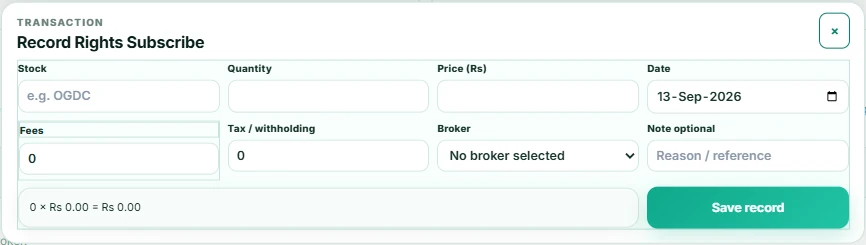
Record Rights Subscription

Rights subscription records the shares you elected to subscribe to and the applicable subscription price, keeping the event separate from an ordinary market purchase.

How to use it

  1. Choose Rights from Quick Entry.
  2. Enter the stock, subscribed quantity and issue/subscription price.
  3. Choose the date and broker account.
  4. Add fees/tax only when applicable.
  5. Save and review the updated position.
Important: Use the public Rights calculator for planning; use this transaction form only for an event you actually record.
Import Trade History screen in Market MindsOpen full size ↗
9

Import Trade History

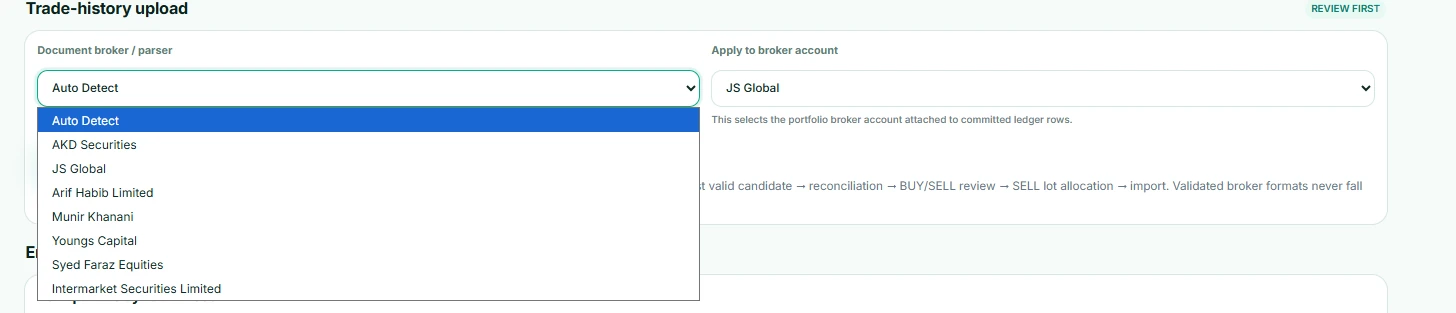
For broker statements, Market Minds can reduce retyping by parsing supported files. The import area lets you choose a broker/parser and the broker account that will receive committed ledger rows.

How to use it

  1. Open Import & Sync.
  2. Choose Auto Detect or a validated broker format.
  3. Select the broker account to which rows belong.
  4. Upload the broker file.
  5. Wait for the review screen; nothing should auto-post directly to the ledger.
Important: Validated formats still go through review. Parser output is a draft until the user confirms it.
Review Before Import screen in Market MindsOpen full size ↗
10

Review Before Import

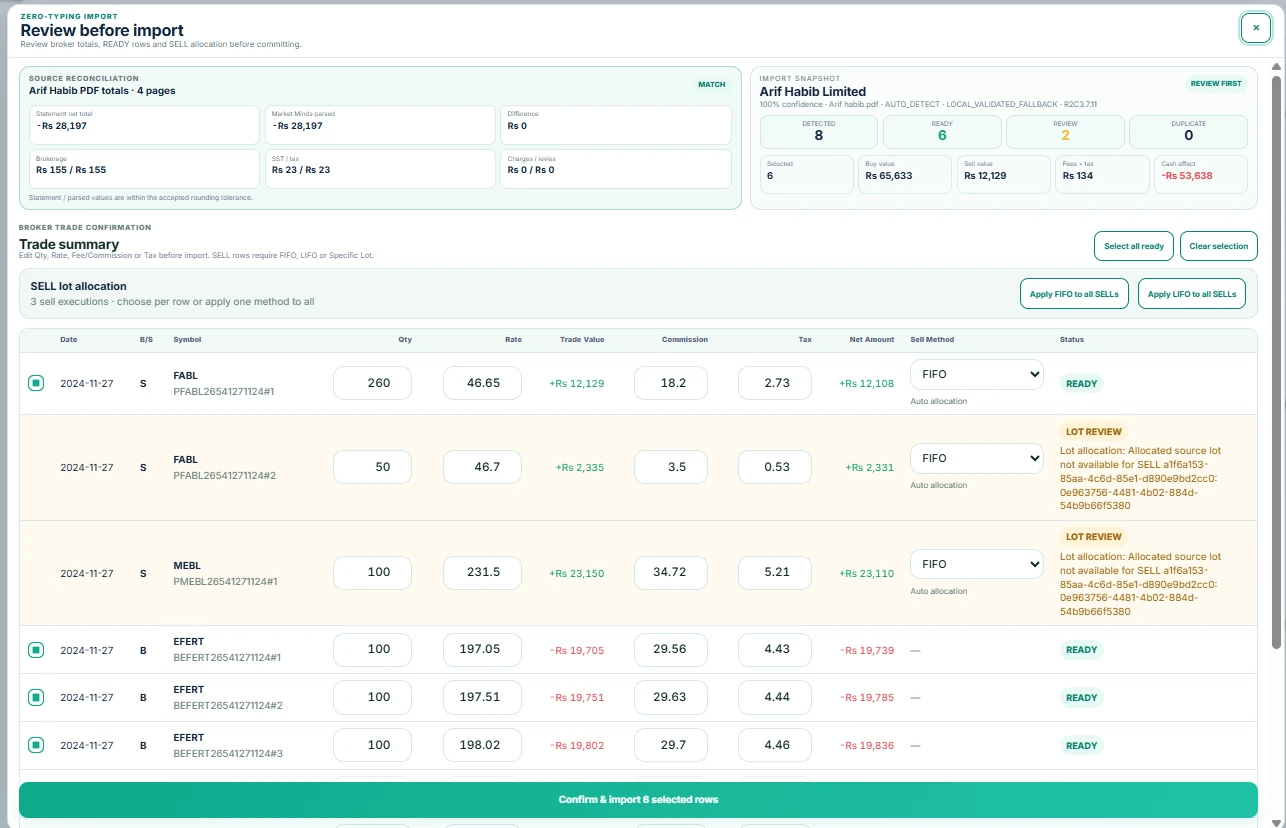
The review screen compares source totals with parsed totals and then shows each detected trade. Sell rows can require lot allocation before the batch is ready.

How to use it

  1. Check statement total vs parsed total and confirm the difference is acceptable.
  2. Review detected Buy/Sell rows, quantities, rates, commissions and taxes.
  3. Resolve every Sell row marked for lot review.
  4. Select only the rows you want to commit.
  5. Use Confirm & import only after the review is complete.
Important: The review-first gate is designed to catch parsing or allocation problems before they change the ledger.
Private Broker Email Sync screen in Market MindsOpen full size ↗
11

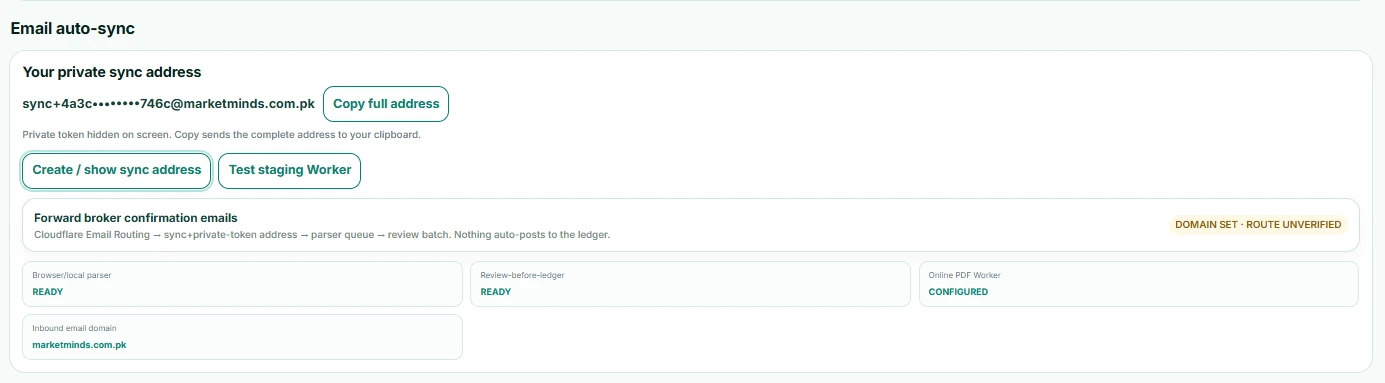
Private Broker Email Sync

A private sync address can be used to forward broker confirmation emails into the same review-first pipeline. The address contains a private token and should not be published.

How to use it

  1. Create or show the private sync address inside your signed-in workspace.
  2. Copy the full address and use it only for your own broker-email forwarding.
  3. Forward supported confirmation emails to the sync address.
  4. Open the resulting review batch.
  5. Approve only after checking the parsed records.
Important: Email sync creates a review batch; it should not auto-post trades into the ledger.
Switch the Broker View screen in Market MindsOpen full size ↗
12

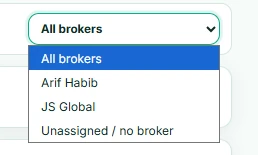
Switch the Broker View

Multi-broker portfolios can be viewed as one combined portfolio or filtered to a single broker account without splitting the underlying portfolio history.

How to use it

  1. Open a Portfolio page with the broker filter.
  2. Choose All brokers for the combined view.
  3. Choose one broker to review only its attached records.
  4. Use Unassigned / no broker for older records that were not mapped.
Important: The broker selector is a view/filter; it does not duplicate transactions.
Understand the Portfolio Value / Profit Bridge screen in Market MindsOpen full size ↗
13

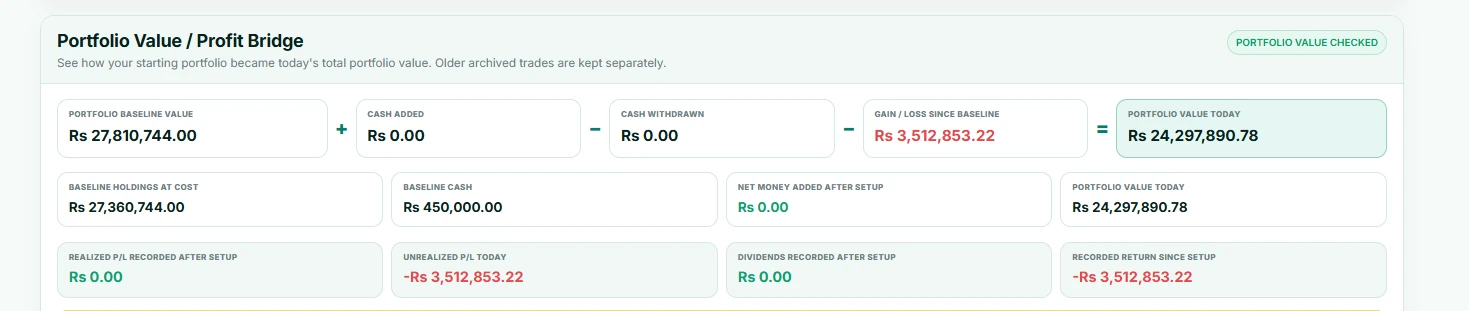
Understand the Portfolio Value / Profit Bridge

The bridge explains how the starting portfolio baseline becomes today's portfolio value. It separates cash added/withdrawn from market gain or loss so money movements are not confused with performance.

How to use it

  1. Read the baseline value.
  2. Add recorded cash deposits after setup.
  3. Subtract recorded cash withdrawals.
  4. Apply gain/loss since the baseline.
  5. Compare the calculated result with Portfolio Value Today.
Important: Older archived history can remain separate until it is fully reconstructed; the bridge should not invent lifetime performance.
Sector Allocation screen in Market MindsOpen full size ↗
14

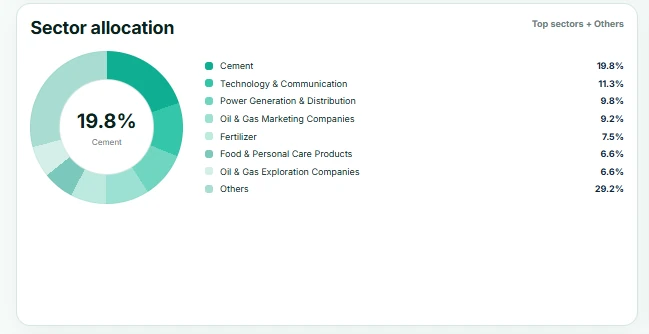
Sector Allocation

Sector allocation groups current holdings by company sector and shows how much of priced portfolio value sits in each group.

How to use it

  1. Open Portfolio → Analytics.
  2. Read the largest sector in the centre of the chart.
  3. Compare the percentages in the legend.
  4. Use the result as a diversification view, not an automatic instruction to trade.
Important: Allocation percentages use current portfolio records and current recorded valuations.
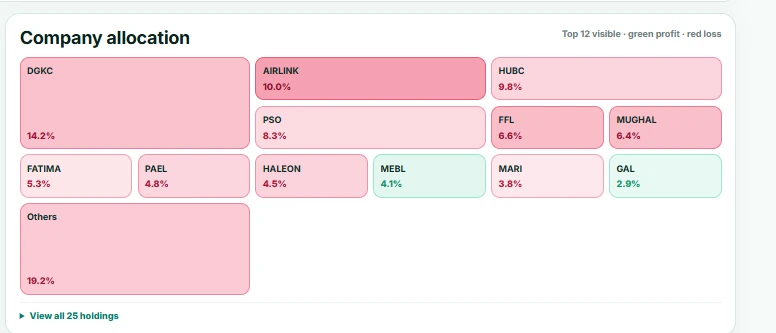
Company Allocation screen in Market MindsOpen full size ↗
15

Company Allocation

The company allocation treemap makes concentration visible. Larger boxes represent larger shares of current holdings value.

How to use it

  1. Open Portfolio → Analytics.
  2. Find the largest company boxes first.
  3. Read the percentage printed inside each visible holding.
  4. Open the full holdings list when you need every position rather than only the top visible names.
Important: Green/red styling can show profit or loss while box size shows portfolio weight; the two meanings are separate.
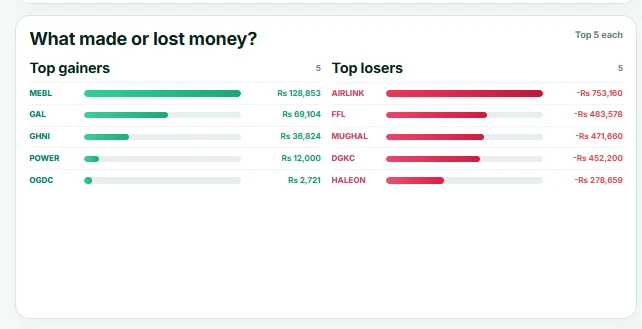
What Made or Lost Money? screen in Market MindsOpen full size ↗
16

What Made or Lost Money?

This card ranks current unrealized contributors so the user can quickly see which positions are helping or hurting the portfolio value today.

How to use it

  1. Review Top gainers on the left.
  2. Review Top losers on the right.
  3. Compare the rupee contribution, not only the percentage move.
  4. Open the holding before making any self-directed decision.
Important: This is attribution from current records, not a Market Minds recommendation to buy, hold or sell.
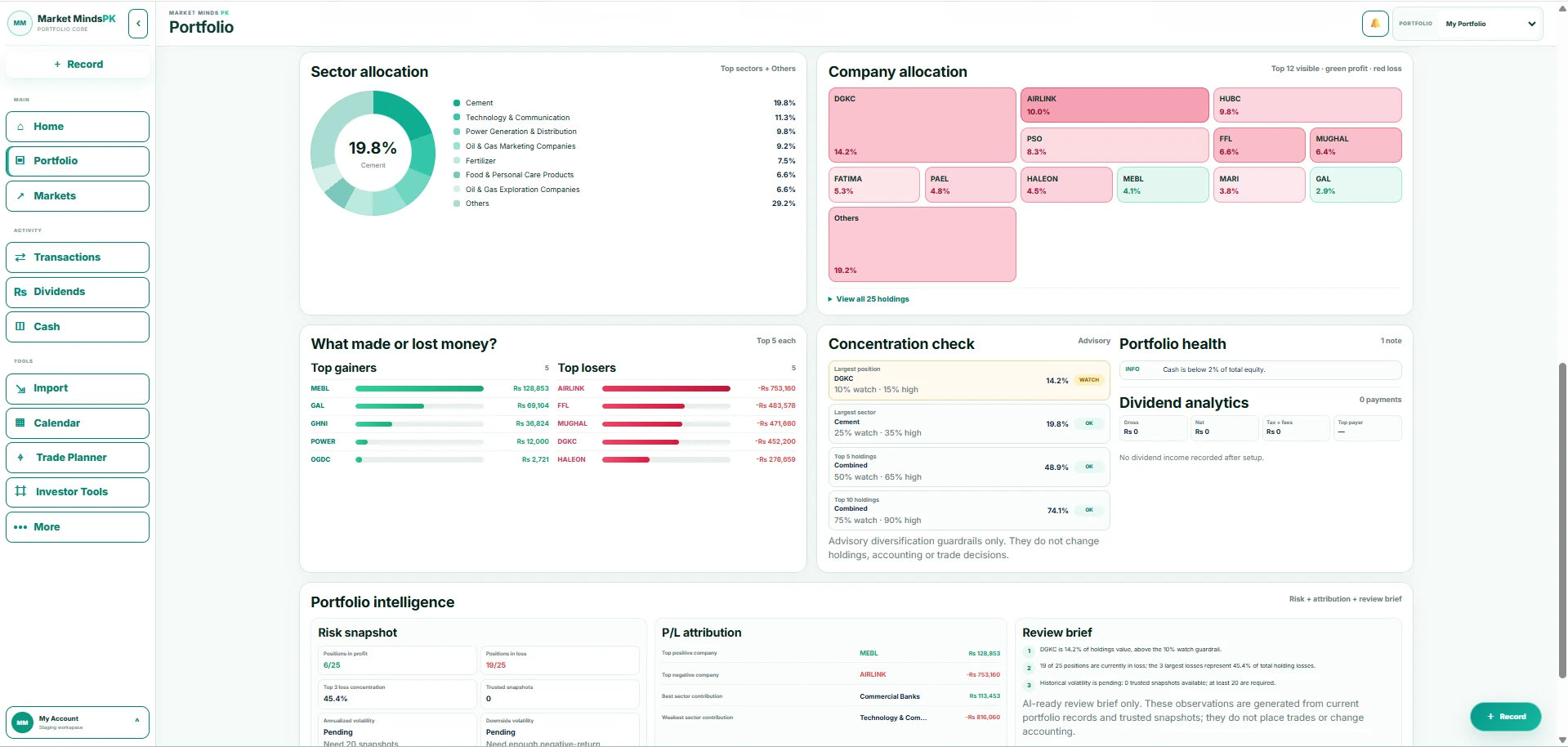
Portfolio Intelligence & Review Brief screen in Market MindsOpen full size ↗
17

Portfolio Intelligence & Review Brief

Portfolio Intelligence summarizes risk and attribution observations from the data already inside the workspace. It can flag concentration, loss contribution and missing historical statistics.

How to use it

  1. Check positions in profit vs loss.
  2. Review top-loss concentration and other risk fields.
  3. Read P/L attribution by company and sector.
  4. Use the Review Brief as a summary of observed data.
  5. Open the underlying holdings/analytics to verify any item that matters to you.
Important: The review brief is informational. It does not place trades or change accounting.
Full Analytics Workspace screen in Market MindsOpen full size ↗
18

Full Analytics Workspace

The Analytics page combines allocation, concentration, gain/loss attribution, portfolio health and performance data into one review workspace.

How to use it

  1. Start with allocation to understand portfolio structure.
  2. Check concentration guardrails and portfolio-health notes.
  3. Review gainers/losers and attribution.
  4. Use performance statistics only when enough trusted snapshots exist.
  5. Return to holdings or the ledger when you need the underlying records.
Important: Analytics should fail closed when required historical data is missing rather than inventing a number.